Safari pinned tabs are their own icon system. They do not replace your normal favicon, and they do not use favicon.ico.
If you want a complete setup with minimal effort, start with a baseline pack:
- Generate your normal icons with the Favicon Generator (ICO + PNGs +
apple-touch-icon+ manifest + snippet). - Add the pinned tab SVG as one extra file.
- If you already have an SVG, generate a clean pinned tab file with: Safari pinned tab icon generator
What a pinned tab icon is (and when you need it)
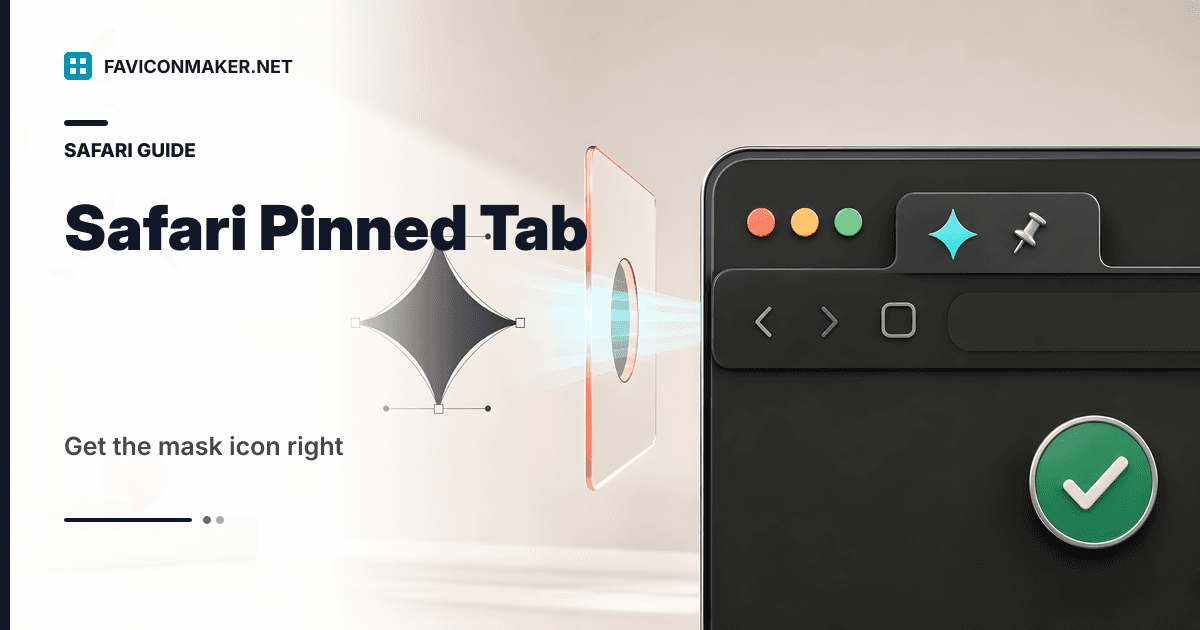
On macOS Safari, users can pin a site. Pinned tabs show a simplified, monochrome icon in the tab bar.
This icon is powered by a special <link> tag:
<link rel="mask-icon" href="/favicons/safari-pinned-tab.svg" color="#0891b2" />
Safari treats the referenced SVG as a mask and fills it using the color value.
If you never see pinned tabs in your traffic, you can skip this. Your regular favicon setup still matters for tabs, bookmarks, iOS home screen icons, and installs.
Apple's documentation calls this out as a separate feature: Safari pinned tabs.
The safe approach: treat it as an add-on
Pinned tab setup goes wrong when teams do one of these:
- They remove their normal favicon tags and ship only a
mask-icon. - They point
mask-iconat a detailed, multi-color SVG logo and expect it to render like normal art.
Do this instead:
- Keep your normal favicon pack (ICO + PNG + Apple touch icon).
- Add
mask-iconas an optional extra for Safari pinned tabs.
If you want background on how favicon formats layer safely, see: ICO vs PNG vs SVG favicons: what to ship (with a layered snippet).
How to create a good safari-pinned-tab.svg
The pinned tab icon needs to survive at tiny sizes in a single color. Complex logos rarely work without simplifying them.
Design constraints that matter
- One solid shape beats thin strokes.
- No gradients. No multiple colors. No shadows.
- Fewer details than your 32x32 favicon; pinned tabs can be smaller.
A simple SVG template (use this shape)
This is not "the one true SVG"; it is a safe starting point for a single-color mask:
<svg xmlns="http://www.w3.org/2000/svg" viewBox="0 0 100 100">
  <path d="M20 20h60v60H20z" fill="#000"/>
</svg>
Replace the <path> with your simplified mark. The fill color inside the SVG does not decide the pinned tab color; Safari uses the color="..." value from the <link> tag.
If you already have an SVG logo, the workflow is usually:
- Open it in your vector tool (Figma, Illustrator, Inkscape).
- Convert strokes to outlines if the icon relies on strokes.
- Remove extra layers and tiny details.
- Export a plain SVG with a clean
viewBox.
Where to put the file (path matters more than the filename)
You can name the file whatever you want, but the common convention is:
/favicons/safari-pinned-tab.svg
If your favicon pack lives somewhere else, keep everything together:
/assets/icons/safari-pinned-tab.svg
Then point href at the real path.
Where to put the tag (order and coexistence)
Add the mask-icon line alongside your existing favicon tags. A complete <head> can look like this:
<!-- Safari pinned tab (macOS Safari) -->
<link rel="mask-icon" href="/favicons/safari-pinned-tab.svg" color="#0891b2" />

<!-- Baseline pack -->
<link rel="icon" type="image/x-icon" href="/favicons/favicon.ico" />
<link rel="icon" type="image/png" sizes="16x16" href="/favicons/favicon-16.png" />
<link rel="icon" type="image/png" sizes="32x32" href="/favicons/favicon-32.png" />
<link rel="apple-touch-icon" sizes="180x180" href="/favicons/apple-touch-icon.png" />
<link rel="manifest" href="/favicons/site.webmanifest" />
<meta name="theme-color" content="#0891b2" />
If you generate your pack with the Favicon Generator, paste its snippet first, then add mask-icon above it.
How to test it without guessing
Pinned tab testing is different from normal favicon testing.
1) Confirm the file is reachable
Open the SVG URL directly:
https://yourdomain.com/favicons/safari-pinned-tab.svg
You should see the SVG render. If you get a 404 or a redirect loop, Safari will not use it.
2) Test in Safari on macOS
Pinned tabs are a macOS Safari feature. The fastest manual test is:
- Open your site in Safari.
- Right click the tab.
- Pin Tab.
If the icon looks blank, your SVG is often too thin, too detailed, or has a broken viewBox.
3) Do not overtrust your current browser profile
Safari caches aggressively, and pinned tabs can hang onto older assets.
If you change the SVG and it does not update, change the URL:
<link rel="mask-icon" href="/favicons/safari-pinned-tab.svg?v=2025-12-22" color="#0891b2" />
The cache busting model is the same idea as PNG favicons. If you want the broader cache checklist, use: Favicon not updating? Fix it with a cache-busting checklist.
Note about our checker
The Favicon Checker currently audits rel="icon", rel="shortcut icon", and rel="apple-touch-icon". It is still useful for verifying your baseline pack, but it does not validate mask-icon yet.
Common issues (and fixes)
The SVG is multi-color or has multiple layers
Simplify it into a single solid shape. Safari treats the SVG as a mask, not a full-color image.
The icon is invisible on dark tabs
Change the color value in the link tag. Pinned tab icons are monochrome; the chosen color is the whole game.
The icon is clipped or off-center
This is almost always a viewBox problem. Re-export the SVG with a tight viewBox that matches the art bounds.
Related tools and guides
- Generate the baseline pack: Favicon Generator
- Verify your normal favicon URLs: Favicon Checker
- Layer formats safely: ICO vs PNG vs SVG favicons: what to ship
- Fix sticky cache issues: Favicon not updating? Fix it with a cache-busting checklist