Logo not square? How to make a favicon without awkward cropping
Most logos are wide. Favicons are square. Use padding, safe areas, and a simple test loop to ship an icon that stays readable at 16x16.
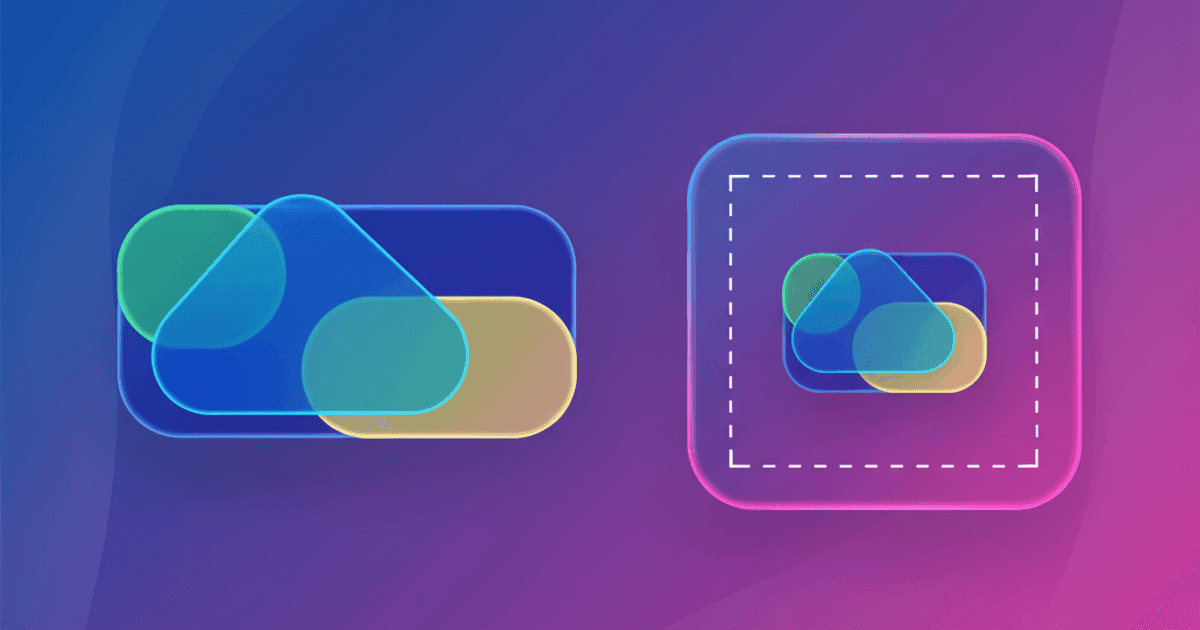
Favicons are square. Many logos are not.
If you upload a wide wordmark, the result is usually unreadable at 16x16.
The fastest path to a usable favicon:
- Start from a symbol mark (or a simplified icon version of your logo).
- Generate a full pack with the Favicon Generator.
- Verify the live result with the Favicon Checker.
The rule that fixes most "my favicon looks bad" problems
If your favicon needs text to be understood, it will fail at tab size.
Use a symbol, a letterform, or a simplified mark. Treat your favicon like an app icon, not a header logo.
A proven workflow for wide logos
1) Pick the right source asset
Good inputs:
- A square logo mark (brand icon)
- A single letter (monogram)
- A simplified version of your logo with no tagline
Risky inputs:
- Full company name wordmarks
- Logos with thin strokes or small internal details
- Logos that depend on a wide layout
If your brand only has a wide wordmark, create a favicon-specific asset once. It will save you hours later.
2) Add padding on purpose (do not crop to the edge)
Your favicon needs a "safe area" so it does not feel cramped.
Aim for a layout where the mark fills about 70 to 85% of the square. Leave breathing room on all sides.
If you crop tight to the edges, small sizes look like a blob.
3) Choose a background strategy
You have two common options:
- Transparent background; looks clean in browser tabs and can sit on any page.
- Solid background; improves contrast when your logo mark is thin or low-contrast.
If your mark is dark and your users browse in dark UI themes, a solid background (or a dark variant) is often the difference between readable and invisible.
This guide goes deeper on that choice: Transparent vs solid-background favicons.
4) Generate the pack and keep the snippet unchanged
Generate a pack with the Favicon Generator, then deploy all files as a set.
Avoid mixing old and new files. It creates confusing half-updates where one browser uses a new PNG and another uses an old ICO.
5) Do a 16x16 reality check
Before you ship, do a quick test that mirrors real usage:
- Zoom your preview to 100% and look at the 16x16 version.
- Ask one question: "Can I recognize this in one second?"
If the answer is no, simplify. Two common fixes:
- Increase padding and enlarge the main shape inside it.
- Remove internal details (small gaps, thin strokes, tiny text).
Examples you can copy (realistic scenarios)
Example: wide wordmark to usable favicon
Input:
acme-wordmark.svg(wide)
Approach:
- Extract the "A" symbol from the brand kit.
- Export
acme-mark-512.pngwith padding and a solid background.
Then:
- Upload
acme-mark-512.pngto the Favicon Generator. - Deploy the pack to
/favicons/. - Paste the snippet.
Example: monogram fallback when there is no icon
If your brand has no mark, a monogram can be cleaner than a squeezed wordmark.
In the generator, you can build a text-based favicon as a stopgap:
- Use your initials (1 to 3 characters).
- Pick high-contrast colors.
- Use a simple shape (square or rounded).
Ship it, then replace it later when you have a dedicated favicon asset.
Common issues (and how to fix them)
The favicon looks blurry
The usual causes:
- Your source image is too small.
- Your mark has thin detail that does not survive downscaling.
Start from a larger source (512x512 is a safe baseline), then regenerate. This post has a focused checklist: Why your favicon looks blurry (and how to fix it).
The icon disappears in dark browser UI
If your mark is dark and the browser UI is dark, you can lose contrast.
Fix options:
- Use a solid background color.
- Generate a dark-mode variant and let the browser switch based on
prefers-color-scheme.
Details and examples: Dark mode favicons: light and dark.
It looks right locally, but wrong on the live site
Favicons cache hard. And local dev setups do not match production caching.
Fix:
- Follow the cache-busting steps in Favicon not updating?.
- Verify the live deploy with the Favicon Checker.
Verify before you ship
After you deploy, run the Favicon Checker and confirm:
- Your page exposes the tags you expect.
- Icon URLs return 200.
- Sizes match what the tags claim.
If you do this once per site launch, favicons stop being a recurring mystery.
Privacy and uploads
When you upload a logo to generate a pack, the image is uploaded for server-side processing.
If you need details, see the privacy policy.
Related tools
- Generate a full pack + snippet: Favicon Generator
- Convert a PNG into a multi-size ICO: PNG to ICO
- Audit what is live: Favicon Checker