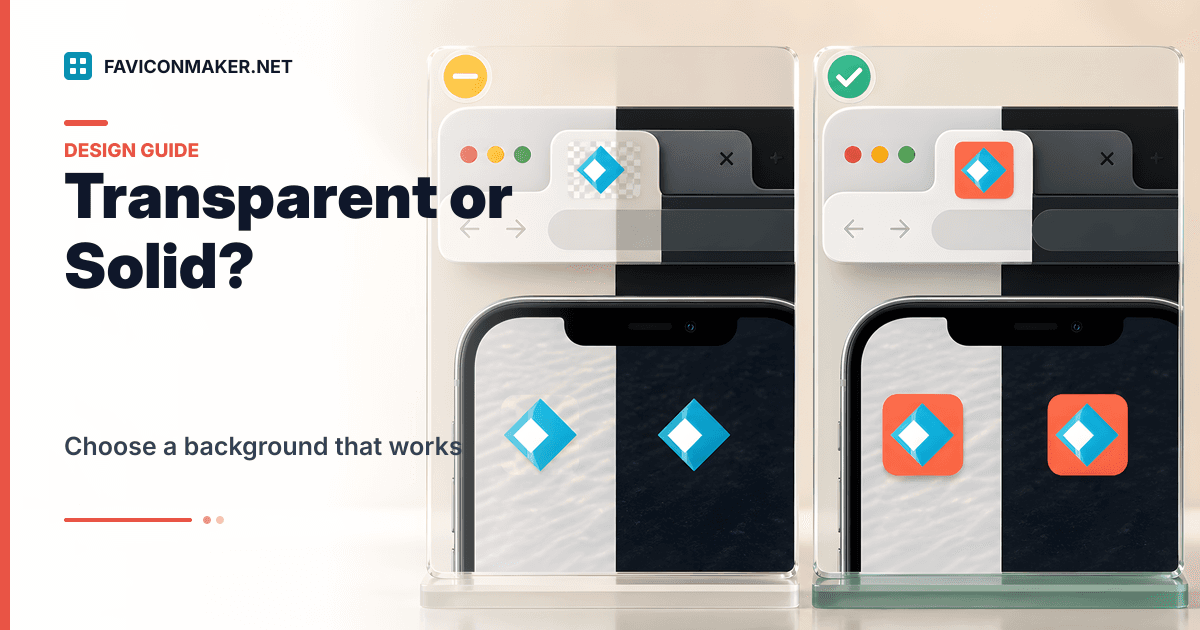
Most favicon problems are contrast problems.
Your favicon has to work at 16x16 in a browser tab, in bookmarks, and sometimes on an iPhone home screen.
If you want a fast, reliable setup:
Preview how it looks in common surfaces: Favicon Preview.
If the icon won’t update after deploy, run: Favicon Cache Buster.
- Generate a pack with the Favicon Generator.
- Confirm the live result with the Favicon Checker.
This post helps you decide when transparency is a win and when a solid background saves you.
Quick answer: when to choose each option
Choose a transparent favicon when:
- Your mark is bold and high-contrast on both light and dark UI.
- Your logo already looks like an app icon (simple shape, clear silhouette).
- You want the icon to blend with different browser themes.
Choose a solid background when:
- Your mark is thin, dark, or low-contrast.
- Your favicon disappears in dark browser UI.
- Your brand mark depends on negative space that breaks on busy backgrounds.
If you are unsure, pick a solid background that matches your brand and ship a dark variant too.
What "transparent" really means in favicon land
PNG transparency is supported in modern browsers. But the background behind the favicon is not always "plain white".
Real backgrounds include:
- Dark browser UI themes
- Favicons shown on colored bookmark bars
- Mobile UI surfaces
A transparent icon that looks perfect on a white page can turn into a black-on-black dot in a dark theme.
A simple contrast test you can do in 30 seconds
Open your 32x32 preview and test it against two backgrounds:
- Pure white (
#ffffff) - Near-black (
#0b0f14)
If it is not readable on one of them, do not ship transparency-only.
How to fix a transparent favicon that disappears
Option 1: add a background color
The easiest fix is turning your mark into an "app icon" style favicon:
- Add padding (safe area).
- Add a solid background.
- Keep the mark large and centered.
Then generate a fresh pack with the Favicon Generator so every size matches.
Option 2: ship light and dark variants
If your icon needs different colors for dark UI, generate a dark-mode variant and include the prefers-color-scheme tags.
This post covers the setup and gotchas: Dark mode favicons: light and dark.
iOS: why backgrounds matter more than you think
iOS home screen icons are not "your tab favicon". They use apple-touch-icon.png.
If you ship a transparent touch icon, you can end up with:
- unexpected edge blending
- low contrast against wallpaper and iOS UI effects
If you care about "Add to Home Screen", a solid background is usually the safer choice.
More iOS-specific fixes: Apple touch icon fixes.
Examples (real assets and outcomes)
Example: thin outline mark
Input:
brand-outline.svg(thin strokes)
Result with transparency:
- Looks clean on white.
- Disappears in dark UI.
Fix:
- Export
brand-outline-512.pngon a solid background. - Generate a pack with Favicon Generator.
Example: filled icon mark
Input:
brand-mark-solid.png(strong silhouette)
Result with transparency:
- Stays readable on both light and dark backgrounds.
You can still add a background if you want a more "app icon" look, but it is not required.
Common mistakes
Shipping a wide wordmark as a favicon
If your logo is wide, the favicon will be tiny and unreadable.
Use a symbol mark or a monogram instead. This guide shows a workflow that works: Logo not square? How to make a favicon without awkward cropping.
Making the icon fill the full square
If the icon touches the edges, it looks cramped at small sizes.
Add padding and re-generate. Safe area is not wasted space; it is what keeps the shape clear at 16x16.
Verify the result on your live site
Do not judge a favicon only in your design tool.
After you deploy:
- Run the Favicon Checker on your live URL.
- Confirm the sizes match what your tags claim.
- Check in at least one dark UI browser theme.
Privacy and uploads
When you upload an image to generate icons, it is uploaded for server-side processing.
Details live in the privacy policy.
Related tools
- Generate a full pack + snippet: Favicon Generator
- Audit what is live: Favicon Checker
- Need a multi-size
favicon.icofrom a PNG? PNG to ICO