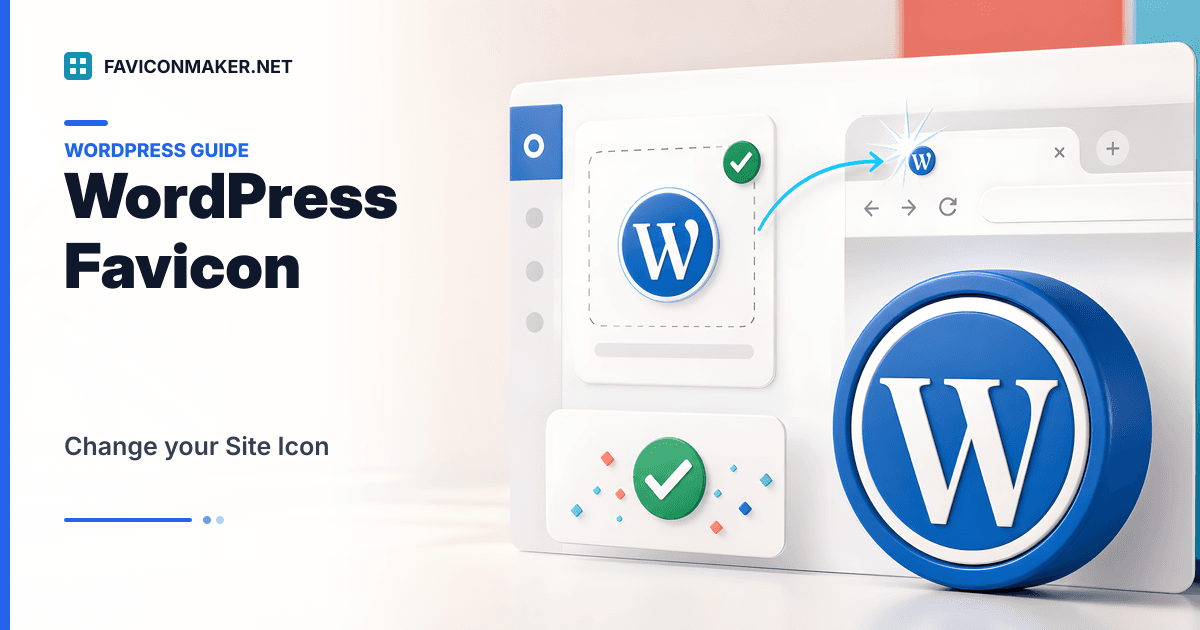
WordPress calls your favicon the Site Icon. It’s the little logo that can show in browser tabs, bookmarks, and sometimes in search results.
This guide shows you exactly how to change favicon in WordPress, including the UI differences between newer and older WordPress versions, plus the fixes that matter when your favicon “won’t update.”
Official reference (WordPress.org): Create a Favicon
Quick answer (pick your WordPress version)
WordPress 6.5+ (new location)
- Go to Settings → General.
- Find Site Icon → Choose a Site Icon.
- Upload/select a square image (recommendation: 512×512 PNG or larger).
- Save.
WordPress 6.4 and older
- Go to Appearance → Customize.
- Open Site Identity.
- Under Site Icon, select/upload a square image (at least 512×512).
- Publish.
If you’re not sure what’s live (or you’re behind a caching plugin/CDN), run an audit first:
WordPress calls this the Site Icon. Upload once, let WordPress generate the sizes, then check what’s actually live.
What file should you upload? (size, format, transparency)
For WordPress Site Icon, the best default is:
- PNG
- 512×512 (or larger)
- Transparent background (optional, but often looks cleaner)
Why so large, when the tab shows ~16×16?
Because WordPress generates multiple sizes from your source image. If your source is too small, the downscaled versions can look blurry (or overly sharpened).
If you want a full “favicon pack” for maximum coverage (ICO + multiple PNG sizes + Apple touch icon + manifest), you can generate one in a couple clicks:
Step-by-step: change favicon (Site Icon) in WordPress 6.5+
- In your WordPress admin, go to Settings → General.
- Scroll to Site Icon.
- Click Choose a Site Icon.
- Upload/select your image.
- Crop if WordPress prompts you (keep the important mark centered).
- Click Select (or Crop Image) and then Save Changes.
Step-by-step: change favicon (Site Icon) in WordPress 6.4 and earlier
- Go to Appearance → Customize.
- Open Site Identity.
- Under Site Icon, click Select site icon / Select Image.
- Upload/select your image.
- Publish your changes.
If you don’t see Customize, you may be on a block theme / new editor experience where WordPress moved options around — in that case, use the 6.5+ path (Settings → General).
When WordPress Site Icon is enough (and when it isn’t)
For many WordPress sites, Site Icon is “good enough” — it covers the common browser surfaces.
However, modern favicon setups often include:
apple-touch-icon.png(iOS home screen)site.webmanifest(PWA installs)- 16×16 + 32×32 explicit PNGs
- An ICO fallback
If you want to go beyond Site Icon, your options are:
- Use a favicon plugin that outputs a full icon set (fastest, but adds a dependency).
- Edit your theme and add a layered icon snippet in your
<head>(best control).
Here’s the safe shape of a layered snippet (paths are examples):
<link rel="icon" type="image/x-icon" href="/favicons/favicon.ico" />
<link rel="icon" type="image/png" sizes="16x16" href="/favicons/favicon-16.png" />
<link rel="icon" type="image/png" sizes="32x32" href="/favicons/favicon-32.png" />
<link rel="apple-touch-icon" sizes="180x180" href="/favicons/apple-touch-icon.png" />
<link rel="manifest" href="/favicons/site.webmanifest" />
If you generate a pack on this site, you’ll get the files and a snippet in one place: Favicon Generator.
Favicon not updating in WordPress (caching + gotchas)
If you uploaded a new Site Icon but your tab still shows the old one, it’s almost always a cache issue.
Try this sequence:
- Confirm you saved/published the Site Icon change.
- Open your site in a Private/Incognito window.
- Purge caches:
- Your WordPress caching plugin (if you use one)
- Your CDN cache (Cloudflare, etc.)
- Your host’s cache (some managed hosts cache aggressively)
- Restart your browser (some browsers cache favicons separately).
If you want the full, “works in real life” debug checklist, use: Favicon not showing.
How to verify your WordPress favicon is live
Two fast checks:
- View page source and search for
rel="icon". - Run Favicon Checker and verify the icon URL is
200with an imageContent-Type.
If the favicon URL returns HTML (text/html), a rewrite rule or theme behavior is intercepting the request.
Video: WordPress favicon walkthrough
FAQ
What’s the difference between a favicon and WordPress “Site Icon”?
In WordPress, Site Icon is the built-in way to set your favicon (and related icon sizes). People say “favicon”; WordPress labels it “Site Icon.”
What size image should I upload for WordPress Site Icon?
At least 512×512. Bigger is fine as long as it’s square and clear.
Why doesn’t my favicon show in Google results?
Even with everything set correctly, it’s not guaranteed. Google needs to recrawl your site and decides whether to show it. Also, some setups block Googlebot from fetching the icon.
Next steps
- Create a full icon pack (ICO + PNG sizes + manifest): Favicon Generator
- Audit what your site serves: Favicon Checker
- Debug stubborn caching and wrong MIME types: Favicon not showing
Helpful external links
- WordPress.org documentation: Create a Favicon
- Google favicon guidelines (search results): Define a favicon to show in search results