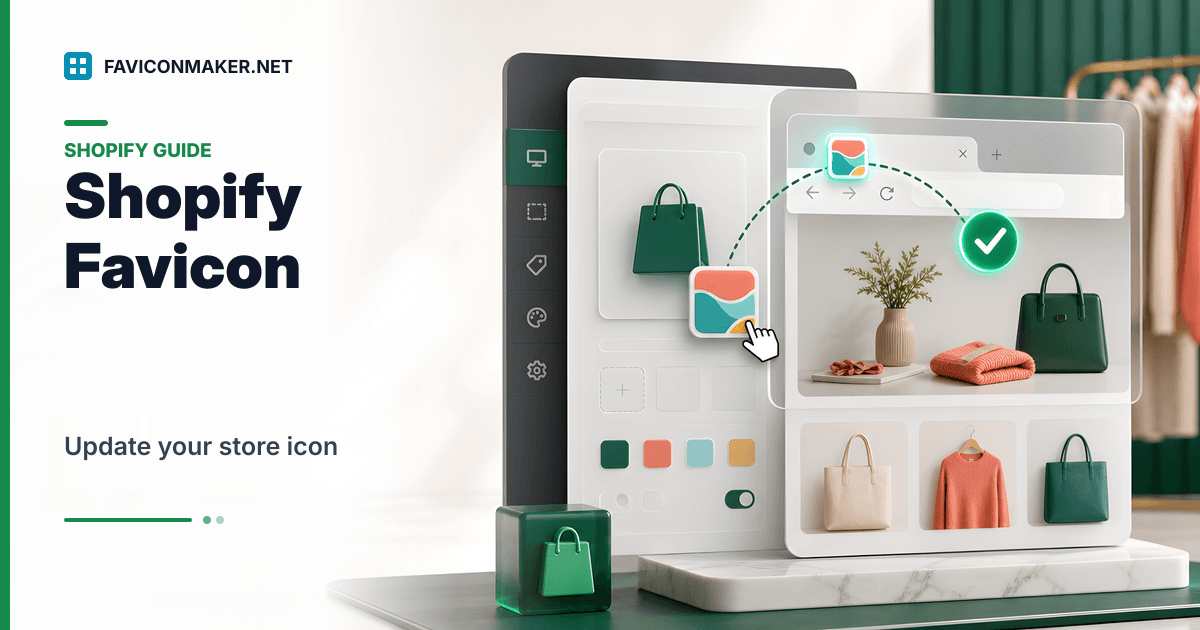
On Shopify, your favicon is controlled by your theme. That’s good news: you don’t need to touch code for the usual case — you just upload an image in Theme settings.
This guide covers exactly how to change favicon on Shopify, what image size to use, where to click in different theme versions, and what to do when the favicon looks correct in your theme settings but “doesn’t show” on the live storefront.
Official reference (Shopify): Adding a favicon to your store
Quick steps (desktop)
- Create a square favicon image (recommendation: 32×32 PNG).
- In Shopify admin: Online Store → Themes.
- On your active theme, click Edit theme (Customizer).
- Click the gear icon (Theme settings).
- Go to Logo or Favicon (varies by theme).
- Upload/select the image → Save.
If you want a full set of icons for all platforms, generate a pack first and grab the 32×32 file for Shopify:
Shopify sets the favicon through your theme settings. The most common mistake is verifying inside the theme editor instead of the live store.
What size favicon should you upload to Shopify?
Shopify’s own guidance is simple:
- Ideal sizes: 16×16 or 32×32
- If you upload something larger, Shopify will reduce it to 32×32 on upload
In practice, a 32×32 PNG is the safest default for Shopify.
If your mark has thin lines, try a bolder variant — 16×16 can turn a detailed logo into a gray blur.
Step-by-step: change favicon on Shopify (desktop)
- From your Shopify admin, go to Online Store → Themes.
- Find the theme you want to update and click Edit theme.
- Open Theme settings (gear icon).
- Depending on theme version, click Logo or Favicon.
- In Favicon image, click Select image and choose/upload your file.
- Click Done and then Save.
Mobile steps (Shopify app)
In the Shopify mobile app:
- Open the menu → Online Store.
- Tap Manage all themes.
- Select your theme → Edit theme.
- Open Theme settings → Logo or Favicon.
- Select/upload → Save.
Shopify plan limitations (important)
Two Shopify limitations trip people up:
- You can set a storefront favicon on Basic plan or higher. (Starter has restrictions.)
- Favicons don’t display in some Shopify-controlled surfaces unless you’re on Shopify Plus (for example, Checkout / Customer Accounts). Shopify may require the Branding API/Checkout tooling for those areas.
That means you can do everything “right” in Theme settings and still not see the icon everywhere.
Why you don’t see the favicon in the Theme Editor preview
The theme editor is part of the Shopify admin — it’s not your live storefront. Shopify explicitly notes that favicons don’t display when viewing your theme through the Theme Editor.
To verify the change:
- Open your live store URL in a new tab (or Incognito)
- Or run Favicon Checker against the live URL
Favicon not updating on Shopify (cache checklist)
If your favicon is saved in Theme settings but your browser tab shows the old icon:
- Confirm you clicked Save (top right) in the theme customizer.
- Open the storefront in an Incognito window.
- Hard refresh (Ctrl/Cmd + Shift + R).
- Clear caches:
- Browser cache (favicons can stick)
- CDN / proxy cache if you use one in front of Shopify
For the full troubleshooting flow (status codes, MIME types, redirects): Favicon not showing.
(Optional) Add a full favicon pack to Shopify (advanced)
Shopify’s Theme settings usually set only the basic favicon. If you want a “complete pack” (Apple touch icon + manifest + multiple sizes), you can add tags in your theme’s <head> (theme code).
Typical approach:
- Generate a pack: Favicon Generator
- Upload the files to Shopify (Theme assets or Files).
- Add a layered snippet to the theme’s
<head>.
If you don’t want to touch Liquid, stop at the Theme settings favicon — it’s enough for most stores.
Video: Shopify favicon walkthrough
FAQ
What format should my Shopify favicon be?
Use a PNG. (JPG can work, but PNG is usually cleaner for icons, especially with transparency.)
Why doesn’t my Shopify favicon show in Google?
It can take time for Google to recrawl and decide to display a favicon, and it’s not guaranteed. Submitting your sitemap and keeping the favicon URL stable can help.
Why does my favicon look blurry?
Your logo is probably too detailed for 16×16 or 32×32. Make a simplified “favicon version” of your logo with thicker shapes and fewer details.
Next steps
- Generate a favicon pack: Favicon Generator
- Verify what your store serves: Favicon Checker
- Debug caching + wrong responses: Favicon not showing
Helpful external links
- Shopify help: Adding a favicon to your store
- Google favicon guidelines (search results): Define a favicon to show in search results