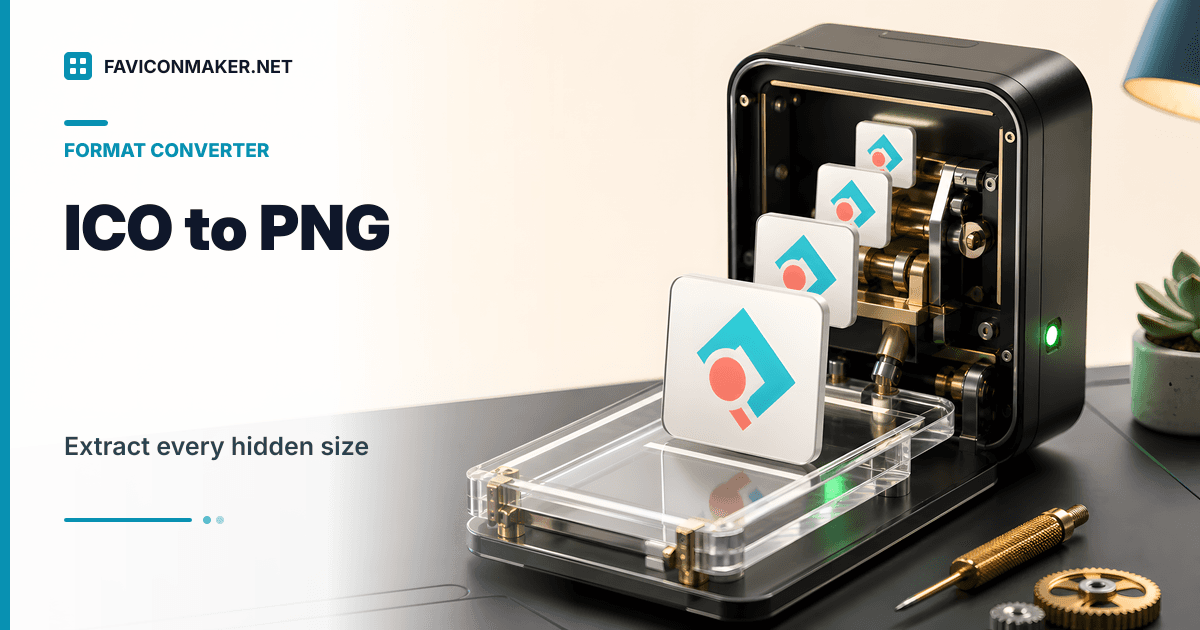
Sometimes you inherit a site where the only asset you have is favicon.ico. That is not ideal, but it is recoverable.
Use this workflow:
- Extract the embedded images: ICO to PNG
- Generate a complete pack once you have a good source: Favicon Generator
What you get when you extract an ICO
Many ICO files embed multiple images (16x16, 32x32, 48x48, 64x64). The extractor pulls out each embedded PNG so you can download them individually.
The key idea: you almost always want the largest extracted size as your new "source of truth".
Step-by-step: extract PNGs from an ICO
- Open ICO to PNG.
- Upload your
favicon.ico. - Click "Extract PNGs".
- Download the size you need (start with the one marked "Largest").
If your ICO contains only tiny sizes, you can still extract them, but you will not get a crisp 512x512 icon out of a 16x16 source. At that point, find the original logo or redraw.
What to do with the extracted PNGs
If you want to regenerate a full favicon pack
- Download the largest extracted PNG.
- Upload it to the Favicon Generator.
- Download the pack and use the generated snippet.
That gets you:
favicon.ico(multi-size)- PNG sizes for modern browsers
apple-touch-icon.pngsite.webmanifest+ icons
If you only need a quick 32x32 PNG
Grab the 32x32 extract and deploy it as a standalone favicon, but treat it as a short-term patch.
Edge cases
The extractor returns nothing
Some ICO files embed BMP images instead of PNG. In that case, extraction may fail or return no icons.
Fix:
- Find the original logo and regenerate, or
- Start from a PNG and create a new ICO with PNG to ICO.
Related tools
- Generate a new
favicon.icofrom a good PNG: PNG to ICO - Turn the ICO into an editable vector: ICO to SVG
- Make a macOS app icon from it: ICO to ICNS
- Got a Mac
.icnsinstead? Convert it with ICNS to ICO - Audit your live site icon coverage: Favicon Checker