The fastest useful check is to scan the public production URL, not a local preview:
- Open the Favicon Checker.
- Enter the complete URL, including
https://and the hostname you want to test. - Run the scan, fix failed icon URLs first, then inspect platform coverage.
An automated score is only the first layer. A complete audit proves five separate things: the page declares an icon, the URL resolves correctly, the server returns valid image bytes, the artwork survives small sizes, and the platforms you care about can discover their preferred asset.
This guide is for developers, site owners, and QA teams checking a public deployment. It is not a promise that Google, an iPhone home screen, or an already-cached browser will display the same image immediately; those surfaces need the manual tests included below.
A real report, not a mockup
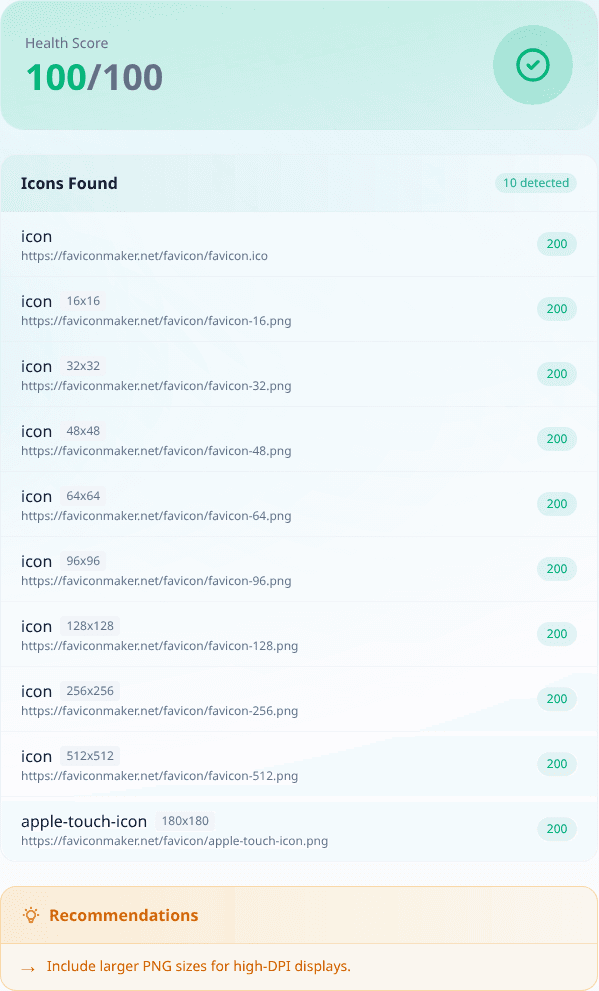
The production FaviconMaker.net scan found ten icon declarations. Every listed URL returned HTTP 200 at test time.
The three-site comparison exposed why the number alone is not enough:
| URL tested | Score | Icons reported | What the report found |
|---|---|---|---|
https://faviconmaker.net | 100 | 10 | ICO, eight PNG sizes, and an Apple icon; every target returned 200. |
https://nextjs.org | 85 | 1 | One working ICO; no Apple icon or theme-color detected by this scanner. |
https://example.com | 70 | 1 | One icon request failed in the scan; Apple icon and theme-color were absent. |
There was also a useful imperfection: the first report recommended larger PNGs even though larger PNGs were listed. The current scoring logic emits that generic suggestion whenever it sees a 16px candidate. That is a good reminder to treat recommendations as prompts to inspect evidence, not as infallible conclusions.
What the checker currently proves
At the time of this review, the scanner:
- Fetches the HTML at the URL you submit
- Reads exact
rel="icon",rel="shortcut icon", andrel="apple-touch-icon"declarations - Resolves root-relative, path-relative, and absolute
hrefvalues - Tries a
HEADrequest, then downloads successful targets withGET - Reports the observed status, MIME type, and detectable dimensions
- Reads a page-level
theme-colormeta tag - Scores missing core declarations, an only-16px setup, missing Apple coverage, broken links, and missing theme color
This is valuable release evidence. It is not a browser emulator or a search crawler.
The scanner does not currently parse icons inside site.webmanifest, execute JavaScript that inserts metadata after load, test Apple home-screen installation, simulate Googlebot, or prove what a previously cached browser will display. Those checks belong in the manual layers below.
Interpret the result in the right order
Fix reachability and validity before adding optional sizes.
Missing declaration, failed response, blocked crawl, or non-image content.
No Apple touch icon, incomplete manifest, weak small-size artwork, or stale cache.
Optional formats, theme color, dark-mode variant, or extra platform coverage.
1. Fix failed and missing core icons
A declared icon that returns 404, 403, 500, or HTML is a deployment failure. Check the resolved URL, filename case, build output, redirects, authentication, CDN rules, and SPA fallback routes.
A homepage with no declaration may still look fine in one browser because browsers sometimes request /favicon.ico automatically. Add an explicit rel="icon" so selection is intentional.
2. Add platform coverage that serves your audience
An Apple touch icon matters when people save the site to an iPhone or iPad home screen. Manifest icons matter for installable web apps. A 16px-only file can cover an old tab but is a poor source for high-density surfaces.
Not every brochure site needs an installable-app pack. Use the score to find omissions, then make a product decision rather than chasing 100 for its own sake.
3. Polish appearance and browser UI
Theme color, dark-mode icon variants, maskable icon safe zones, and extra sizes improve specific surfaces. They cannot rescue a broken href or unreadable mark.
The seven-layer manual audit
Layer 1: HTML discovery
Inspect the final page's rendered <head>. A robust baseline is:
<link rel="icon" href="/favicon.ico" sizes="any" />
<link rel="icon" type="image/png" sizes="32x32" href="/favicon-32x32.png" />
<link rel="icon" type="image/png" sizes="64x64" href="/favicon-64x64.png" />
<link rel="apple-touch-icon" sizes="180x180" href="/apple-touch-icon.png" />
<link rel="manifest" href="/site.webmanifest" />
<meta name="theme-color" content="#ffffff" />
Use the declarations your site actually needs. rel="shortcut icon" is a historical spelling that MDN identifies as nonconforming; new markup should use rel="icon".
Check both views:
- View Source shows the HTML sent by the server.
- DevTools Elements shows the DOM after JavaScript runs.
If only Elements contains the icon, the framework or client code injected it. That may work in browsers, but server-rendered metadata is easier for tools and crawlers to discover.
Layer 2: URL resolution
Copy each href, resolve it against the tested page, and open the result directly. A missing leading slash is easy to overlook:
| Page URL | href | Browser requests |
|---|---|---|
https://site.test/docs/ | /favicon.png | https://site.test/favicon.png |
https://site.test/docs/ | favicon.png | https://site.test/docs/favicon.png |
https://site.test/docs/page | ../favicon.png | https://site.test/favicon.png |
The browser follows URL rules, not the location of your source component. This is why a relative path can work on / and fail on every nested route.
Layer 3: HTTP behavior
Use the Network panel with cache disabled, filter for ico, png, svg, or manifest, then reload. Record:
- Requested URL and final URL after redirects
- Status code
- Response
Content-Type - Cache headers and whether the response came from memory, disk, a service worker, or the network
- Response body or preview
Repeat from a terminal with a real GET:
curl -sS -L -D /tmp/favicon-headers.txt \
  -o /tmp/favicon.bin \
  https://www.example.com/favicon.png

cat /tmp/favicon-headers.txt
file /tmp/favicon.bin
Why not rely only on curl -I? Some origins reject HEAD while serving GET, and some applications route the two methods differently. A checker that begins with HEAD can therefore report a false negative. Confirm questionable results with GET and the browser.
Layer 4: MIME type and real file bytes
The filename extension is not evidence. A route called favicon.png can return an HTML login page.
Typical response types are:
| Format | Common content type | Additional check |
|---|---|---|
| PNG | image/png | Confirm width, height, alpha, and actual PNG signature. |
| SVG | image/svg+xml | Confirm a square viewBox and no blocked external assets. |
| ICO | image/x-icon or image/vnd.microsoft.icon | Inspect the embedded sizes, not just container size. |
| Web manifest | application/manifest+json or valid JSON type | Validate JSON and every icon src. |
The IANA media type registry is the authoritative registry, while browser tolerance can be broader. Correct headers make failures easier to diagnose and prevent an HTML fallback from masquerading as an image.
Layer 5: dimensions and artwork
Check intrinsic pixels, not the sizes attribute. The markup can claim 64x64 while the file is 32x24.
For each important file, verify:
- Width equals height
- The declared size matches the image
- Transparent edges are intentional
- Fine strokes do not vanish at 16px
- Light artwork remains visible on light browser chrome
- Dark artwork remains visible on dark browser chrome
- The mark still reads when downsampled, not only when zoomed in
The favicon preview tool makes visual comparison faster. If a wide logo becomes a thin horizontal line, use a symbol or monogram and follow the square logo workflow.
Layer 6: manifest and installed-app coverage
Open the manifest URL and validate its JSON. A minimal example:
{
  "name": "Example",
  "icons": [
    {
      "src": "/icons/app-192.png",
      "sizes": "192x192",
      "type": "image/png",
      "purpose": "any"
    },
    {
      "src": "/icons/app-512-maskable.png",
      "sizes": "512x512",
      "type": "image/png",
      "purpose": "maskable"
    }
  ]
}
Then request each src relative to the manifest URL. The MDN icons reference explains candidate selection and the purpose values any, maskable, and monochrome.
Chrome DevTools' Application panel can expose manifest parse errors and installability details. Also install the app on a real target device: a valid manifest does not prove that a maskable logo remains inside the device's crop.
Layer 7: platform outcomes
Finish on the surfaces users actually see:
- A fresh desktop browser profile
- A mobile browser tab
- An iOS or iPadOS saved home-screen shortcut if supported
- An installed PWA if the product is installable
- Google Search eligibility if organic results matter
Google adds requirements beyond a normal browser. Its Search favicon documentation requires a homepage declaration, a square image, crawler access, and a stable URL; processing can take days to weeks and display is not guaranteed. Use the dedicated Google troubleshooting guide for that path.
A repeatable DevTools procedure
- Open a private window or a clean browser profile.
- Open DevTools before loading the site.
- In Network, enable Disable cache while DevTools is open.
- Load the exact public URL.
- Filter requests for
favicon,.ico,.png,.svg, andmanifest. - Open each request and inspect Headers, Preview, and Timing.
- In Elements, search for
rel="icon",apple-touch-icon, andmanifest. - In Application, inspect the manifest, service workers, and Cache Storage.
- Change routes inside an SPA and see whether metadata changes or duplicates.
- Close DevTools, reload normally, and confirm the visible browser result.
That last step matters. Disabling cache is a diagnostic condition, not how visitors browse.
Failure patterns that waste the most time
“It works on my computer”
Your browser may hold a favicon from before the current deploy. Compare a clean profile, direct network request, and another device before changing code.
Every icon URL returns the homepage
An SPA fallback or rewrite is catching static assets. Exclude known icon and manifest paths from the catch-all rule. A 200 text/html response is still wrong.
The checker reports 500, but the icon opens
Test HEAD and GET separately. If HEAD fails while GET succeeds, fix the origin's method handling where practical and interpret the automated result accordingly.
The tag uses data: or a JavaScript-generated blob URL
Inline data can work in some browser contexts but is difficult for external tools to fetch, cache, and inspect. Publish a stable image URL for broad compatibility and Search.
The SVG has no measurable dimensions
Add a square viewBox and test rasterization at target sizes. SVG is resolution-independent, but artwork complexity and incomplete geometry still fail at 16px.
A service worker keeps serving an old pack
Inspect Cache Storage, unregister the worker in a test profile, and verify the network response. Update the cache version and activation strategy rather than asking every user to clear all site data.
A redirect chain crosses hosts
Follow the final URL, inspect CORS-independent image behavior in the browser, and remove avoidable hops. For Google, both the homepage and final image must remain crawlable.
What a passing release looks like
Use this evidence-based worksheet:
| Check | Pass condition | Evidence to save |
|---|---|---|
| Homepage metadata | Intended declarations exist once | Head snippet or screenshot |
| URL resolution | Every href resolves to intended public path | Absolute URL list |
| Network | Core icons return 2xx to GET | Headers or HAR |
| File identity | MIME and bytes match | file output / response preview |
| Geometry | Important images are square and correctly declared | Dimension report |
| Small-size design | Mark is recognizable at 16px and 32px | Preview screenshot |
| Apple | 180px touch icon works when saved | Device screenshot |
| PWA | Manifest parses and icon crops are safe | DevTools/device result |
| Search | Homepage and image meet Google requirements | Search Console inspection |
| Cache | Public response contains current bytes | Checksum and headers |
For a new pack, the Favicon Generator creates the browser, Apple, and manifest assets together. After deployment, rerun the checker from the public hostname and complete the manual platform rows.
Frequently asked questions
What score should I aim for?
Fix every broken or missing core icon. After that, the ideal coverage depends on the product: an installable app needs more than a simple documentation site. A score of 100 is reassuring evidence, not the product goal.
Does HTTP 200 mean the icon is valid?
No. The body can be HTML, an unsupported or corrupt image, the wrong dimensions, or yesterday's cached artwork. Inspect headers, bytes, geometry, and pixels.
Why does a browser show an icon that is absent from the HTML?
Browsers may request /favicon.ico as a fallback or reuse a cached icon. Add an explicit declaration so the behavior is portable and auditable.
Should every site have a web manifest?
No. A manifest is important for installable web-app behavior. A conventional website can still have excellent tab, bookmark, Apple, and Search coverage without pretending to be an installable app.
Can an online checker see localhost?
No public service should fetch private or loopback addresses. Deploy a preview protected appropriately, or run the manual browser and command-line checks against your local server.
How often should this be tested?
Run it after a rebrand, framework migration, CDN or routing change, domain change, and before a major launch. Add direct icon URL checks to smoke tests when these assets are business-critical.
Primary references
- WHATWG HTML: Icon link type
- MDN:
rel="icon"selection behavior - MDN: Web app manifest icons
- Google Search Central: Favicon requirements
A useful audit ends with evidence, not a green circle: one clean set of declarations, image responses you have actually opened, artwork you have viewed at real size, and platform tests that match the product's audience.