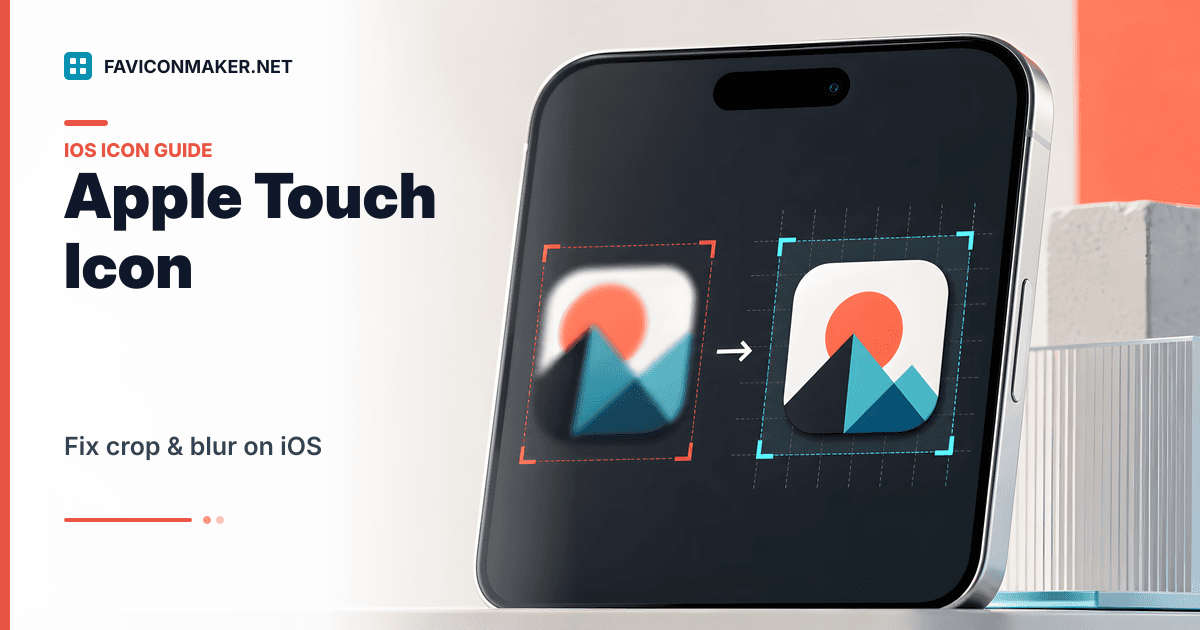
iOS does not use your browser tab favicon for everything. When someone adds your site to their home screen, iOS uses apple-touch-icon.png.
If you want it to look correct quickly:
- Generate a pack with an
apple-touch-icon: Favicon Generator - Only need the iOS icon file: Apple touch icon generator
Why Apple touch icons look wrong
Cropping
iOS applies rounding and visual treatment in some contexts. If your icon touches the edges, it will feel cropped even if the image is technically correct.
Fix: include padding. Your logo should sit inside the square, not touch the borders.
Blur
If you start from a small source image, iOS will upscale it. That is where blur comes from.
Fix: start from a large source (512x512 or SVG), then generate down to 180x180.
The simplest workflow
- Open the Favicon Generator.
- Upload your logo (SVG is a good option if you have it).
- Pick a background color that matches your brand.
- Adjust the scale so the mark has breathing room.
- Download the ZIP and deploy
apple-touch-icon.png(and the rest of the pack). - Paste the snippet so the tag is present.
The tag you want looks like this:
<link rel="apple-touch-icon" sizes="180x180" href="/favicons/apple-touch-icon.png" />
Quick do/don't list
Do:
- Use a large, square source
- Keep the icon simple
- Add padding
Don't:
- Export a 180x180 icon from a 32x32 source
- Let thin strokes sit on the edge of the square
- Forget to deploy the file you reference in the tag
How to verify on iOS
iOS caches aggressively too. For a clean test:
- Change the URL (cache busting) or uninstall the home screen icon
- Reload the page in Safari
- Add to Home Screen again
If you need a general cache checklist, start here:
Related tools
- Full pack + snippet: Favicon Generator
- Audit the live result: Favicon Checker
- Generate apple-touch-icon.png: Apple touch icon generator